
2026 | Ticketing System 2.0 for Users Without the Deadline Feature
Explore the Ticketing System 2.0
📲 What's New?
Today, we’re introducing a major update that we’ve been preparing for months. In early 2026, Timly will open a new chapter with a redesigned version of its ticketing system.
This update offers a more intuitive and efficient interface and user experience, and we’ll guide you step by step through the transition.
In this guide, you’ll find:
- Detailed tutorials
- A demonstration video
- Key information
- A comparison table
Note:
This guide is general and includes screenshots from the Essential, Standard, and Pro ticketing systems.
To see which features are included in your plan, visit the “Table: The Ticketing System” section at the end of this article.
👉 Click here to watch the Ticketing System 2.0 in action! 👈
📚 Tutorial: Creating a Ticket Category and a Ticket Template
Note:
- “Ticket types” are now called “ticket templates”
- Ticket categories and ticket templates are now managed on a single page
As a Timly administrator, the first step before creating tickets is to create ticket categories and ticket templates.
- Ticket categories help structure tickets
- Ticket templates help standardize and simplify ticket creation
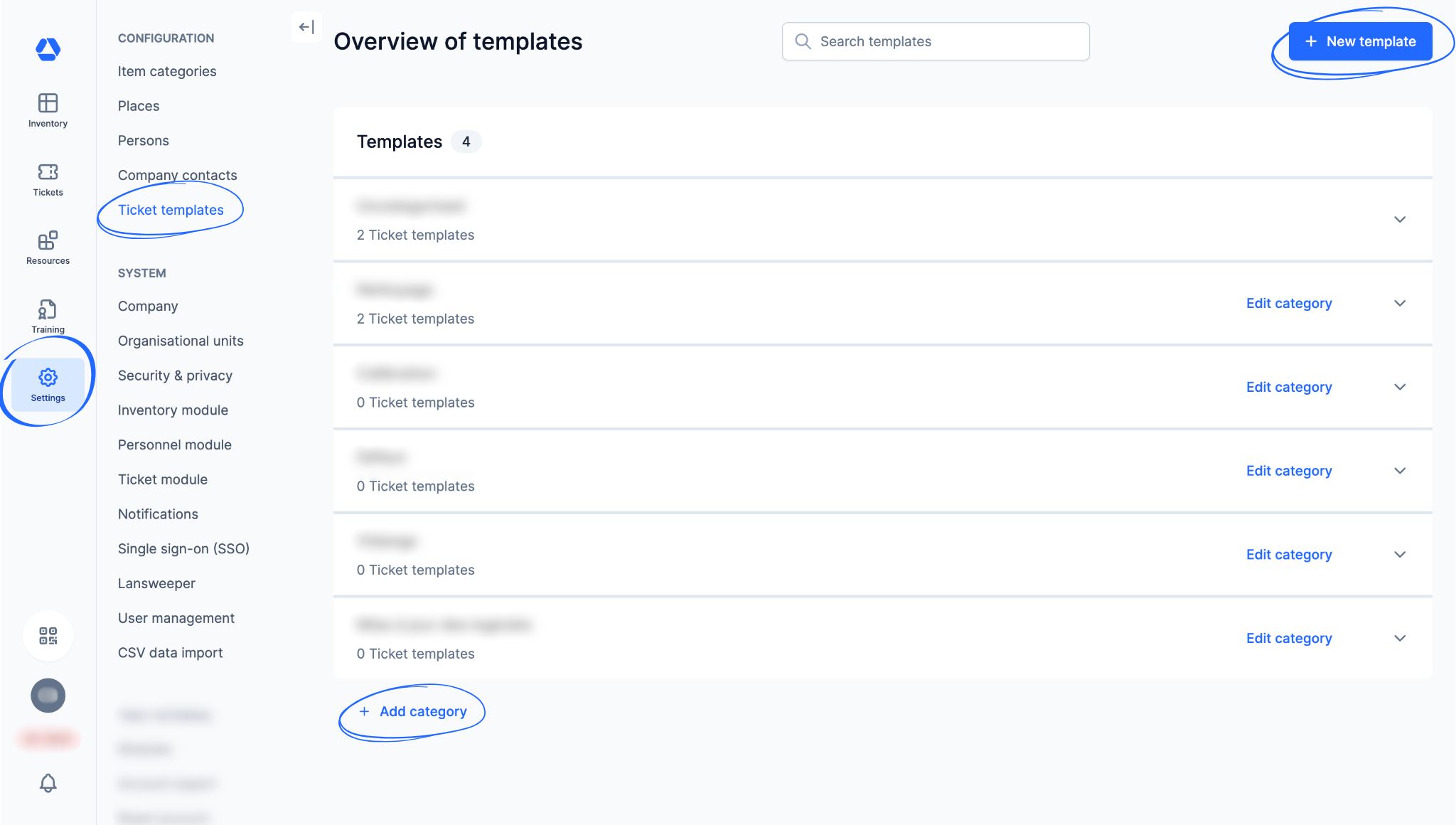
To create your ticket categories and templates, click "Settings", then "Ticket templates"
Step 1: Create a Ticket Category
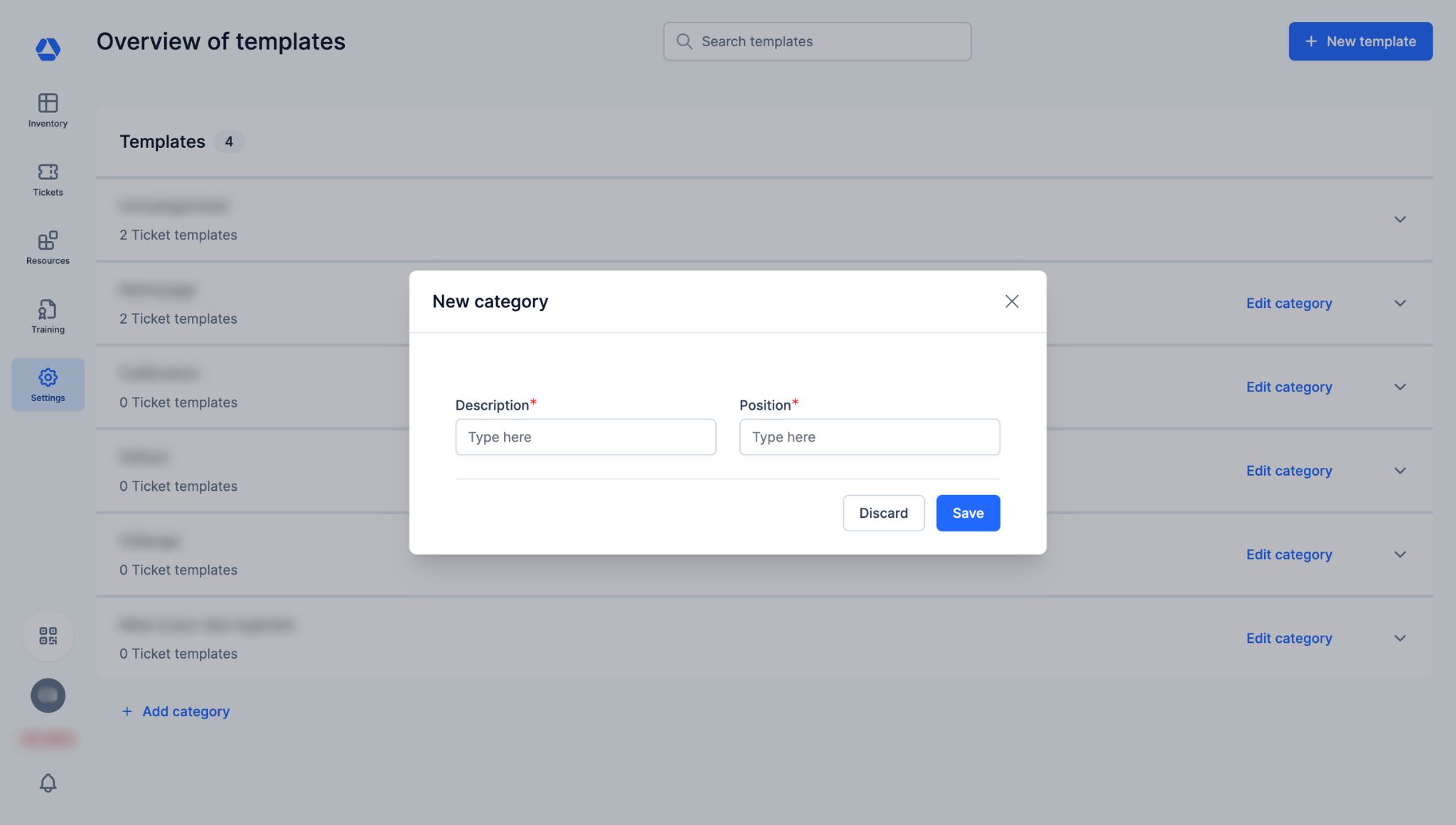
Examples of ticket categories:
- Inspections
- IT
- Maintenance
To create a ticket category:
- Click "Add Category" in the template overview
- Enter the category name in the "Description" tab
- Set its position by entering the corresponding number in the "Position" tab
Step 2: Create a Ticket Template
Examples of ticket templates:
- Incident report
- Maintenance request
- Software update request
- Periodic general inspection
To create a ticket template:
- Click "New Template" in the template overview
- Fill in the fields
"Overview" Tab:
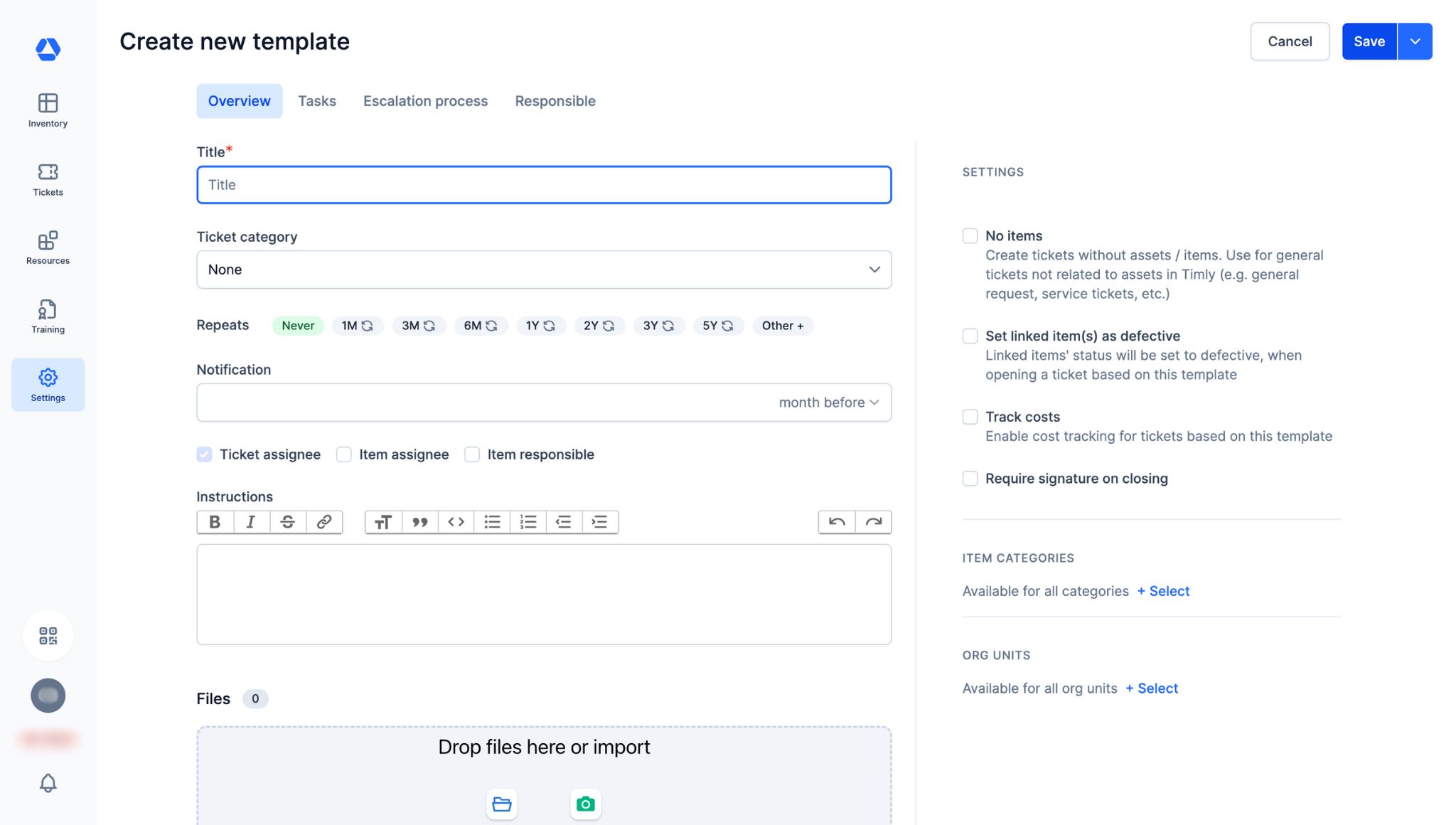
- "Title": Enter the title for your ticket template
- "Category": Select the ticket category for this template. If no category is selected, the template will default to “Uncategorized”
- "Repetitions": If this template is for repeatable tickets, select the desired frequency. For a custom frequency, click "Other" and specify the duration
- "Notification": Set when responsible people should be notified before the ticket’s due date
- The checkboxes "Ticket assignee", "Item assignee", and "Item responsible" allow you to choose who will receive the email notification
- "Instructions": Add any instructions you want to appear in each ticket created from this template
- "Files": Add files—documents, photos, etc.—to automatically include them in tickets created from this template
"Tasks" Tab:
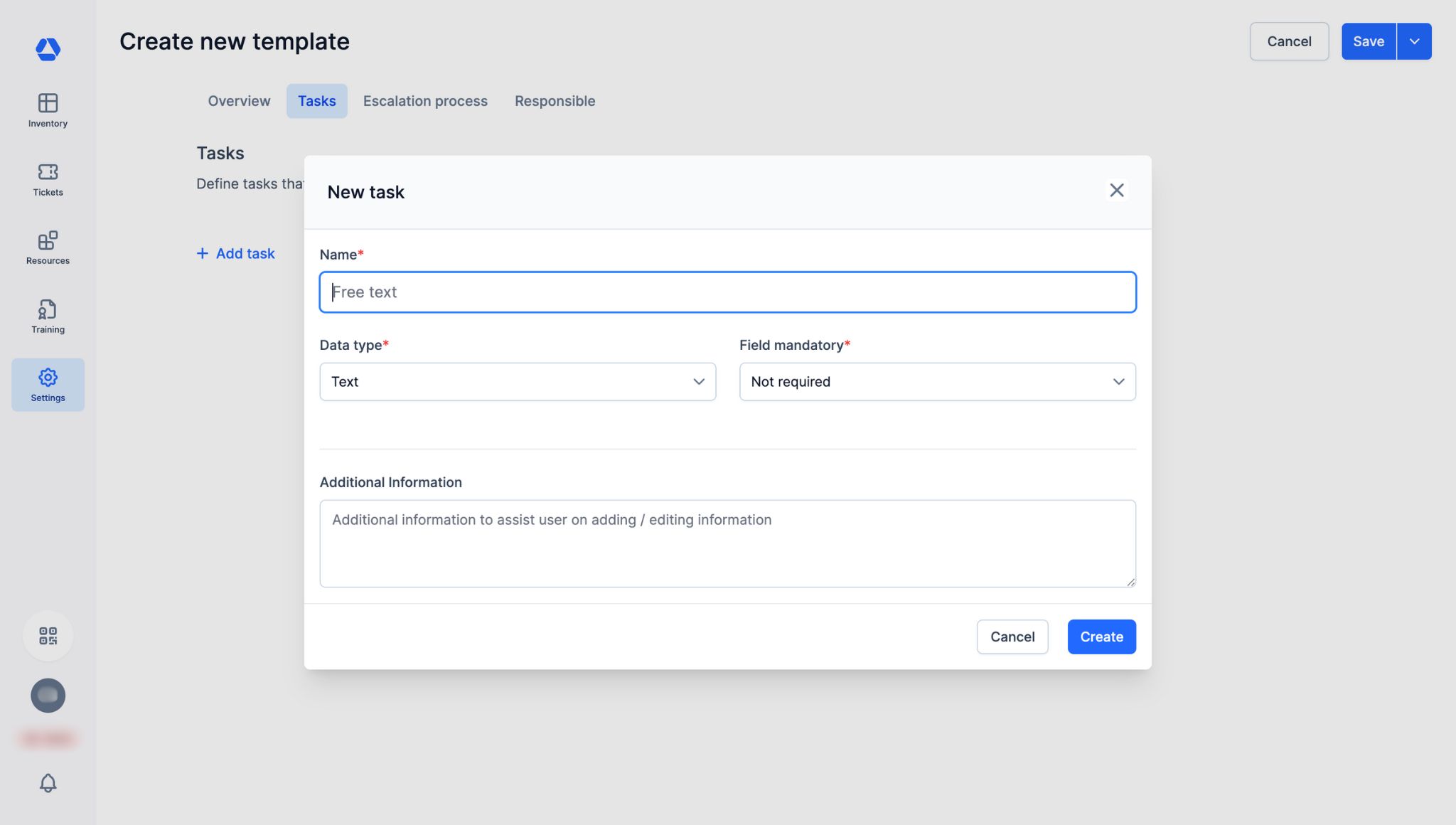
Note: Ticket “fields” are now called “tasks”.
- Click "Add task"
- "Name": Enter the task name
- "Data type": Select the data type—checkbox, URL, date, yes/no, etc.—for this task
- "Field mandatory": Specify whether this task is required and, if so, at which step
- "Additional Information": Add instructions if necessary
"Escalation process" Tab:
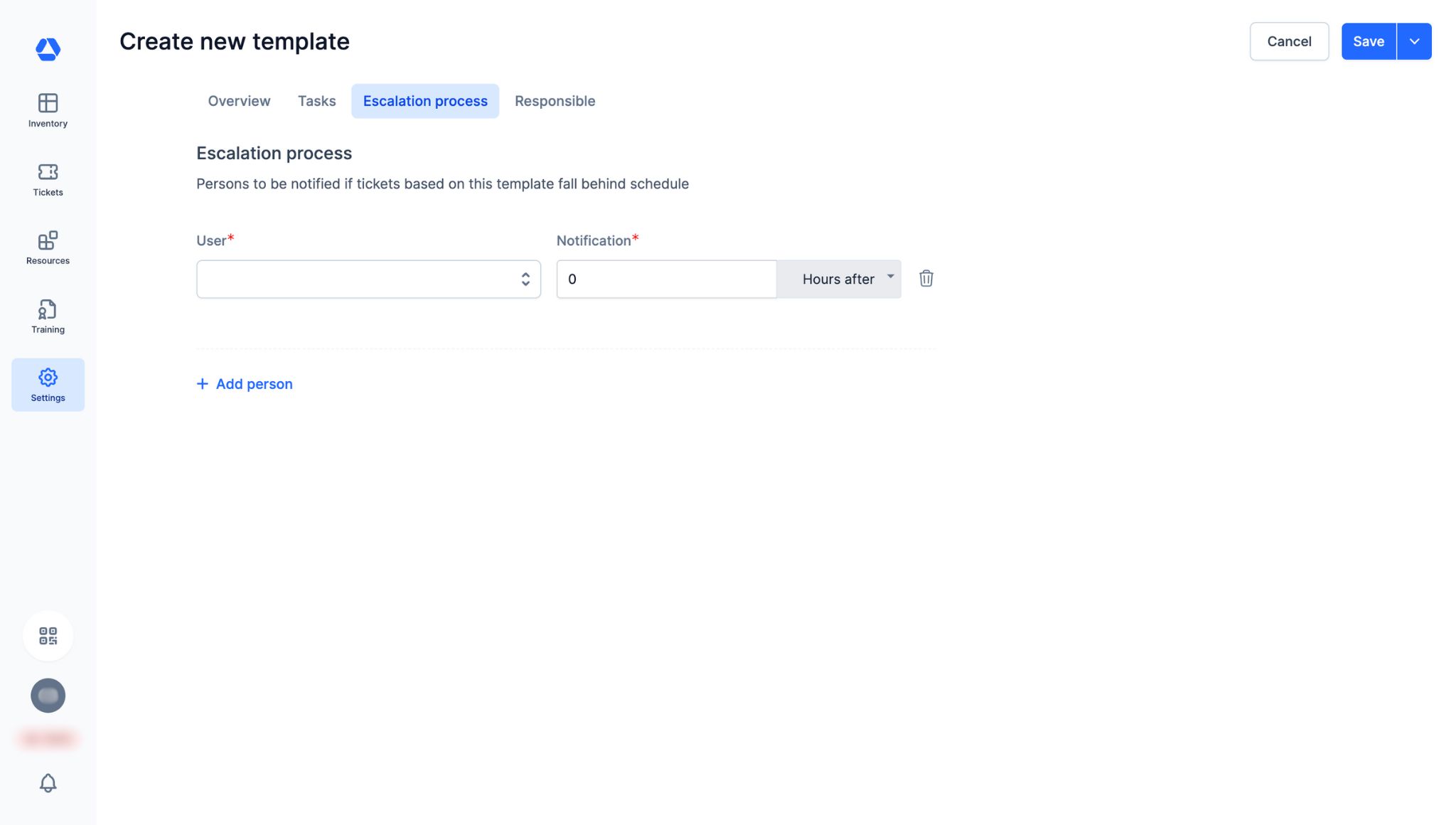
- Click "Add person"
- "User": Select the person to be notified if a ticket created from this template is overdue
- "Notification": Specify when responsible people should be notified if a ticket is late
"Responsible" Tab:

- "Define template responsibles": In the dropdown menu, select the person responsible for this ticket template across all organizational units
- "Responsibles per org unit": Click "Add a responsible by organizational unit" to assign a responsible person for each organizational unit
📚 Tutorial: Creating a Ticket
Examples of tickets:
- Report a stolen item
- Repair following a breakdown
Method 1: From an Item Page
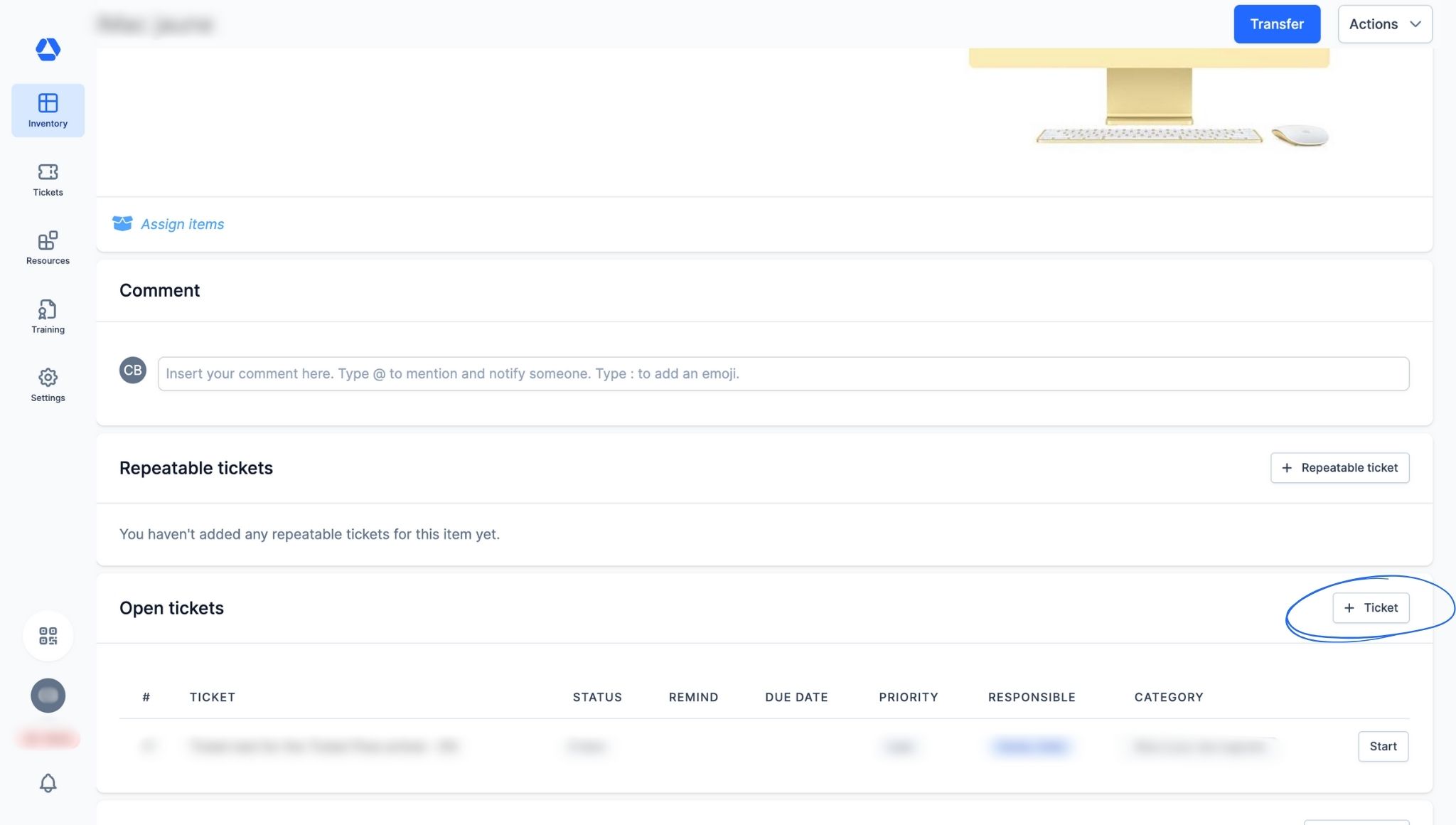
To create a ticket from an item page:
- Go to the item page from the inventory overview or by scanning the item’s QR code)
- Scroll to the "Open Tickets" section
- Click "+ Ticket"
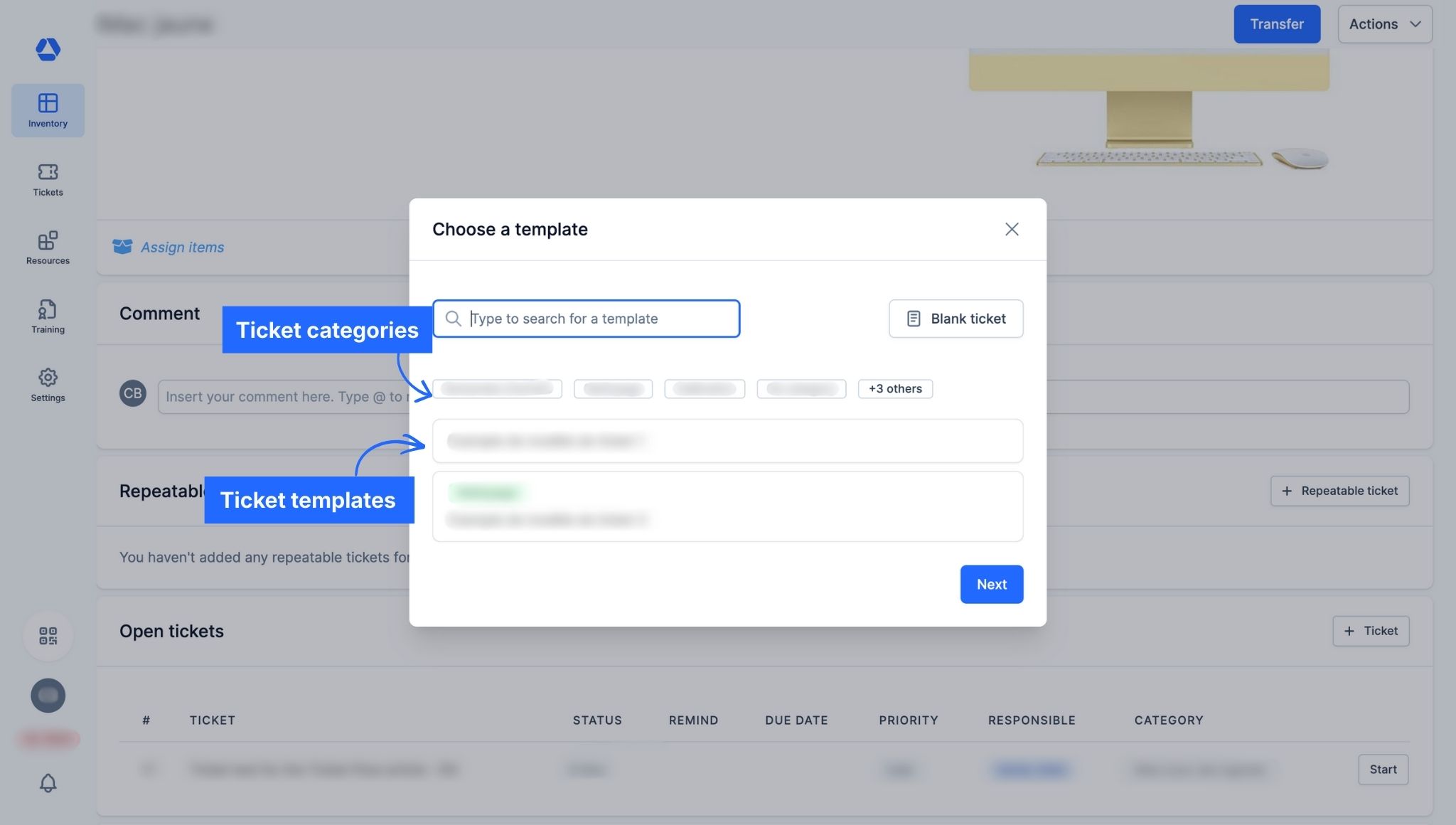
- Choose a ticket template
- Optional: Search for the template name or click a ticket category to find it faster

- Fill in the fields:
- "Title": Enter the ticket title
- "Ticket status": Select the ticket status
- "Ticket category": If not done already, choose a ticket category
- "Scheduled Ticket": Check this box if you want to set a due date
- "Due date": Select when the ticket should be completed
- "Notification": Choose how many days, weeks, months, or years in advance to send an email reminder
- "Assigned to": Select one or more responsible people; they will receive the reminder
- "Priority": Set the ticket priority: Low, Medium, or High (tickets can be filtered by priority in the overview)
- "Instructions": Optional; add instructions if necessary
- "Items": Add items to this ticket (search via the magnifying glass or scan the QR code; remove with the trash icon)
- "Files": Add or remove files for this ticket
Method 2: From the Ticket Overview Page
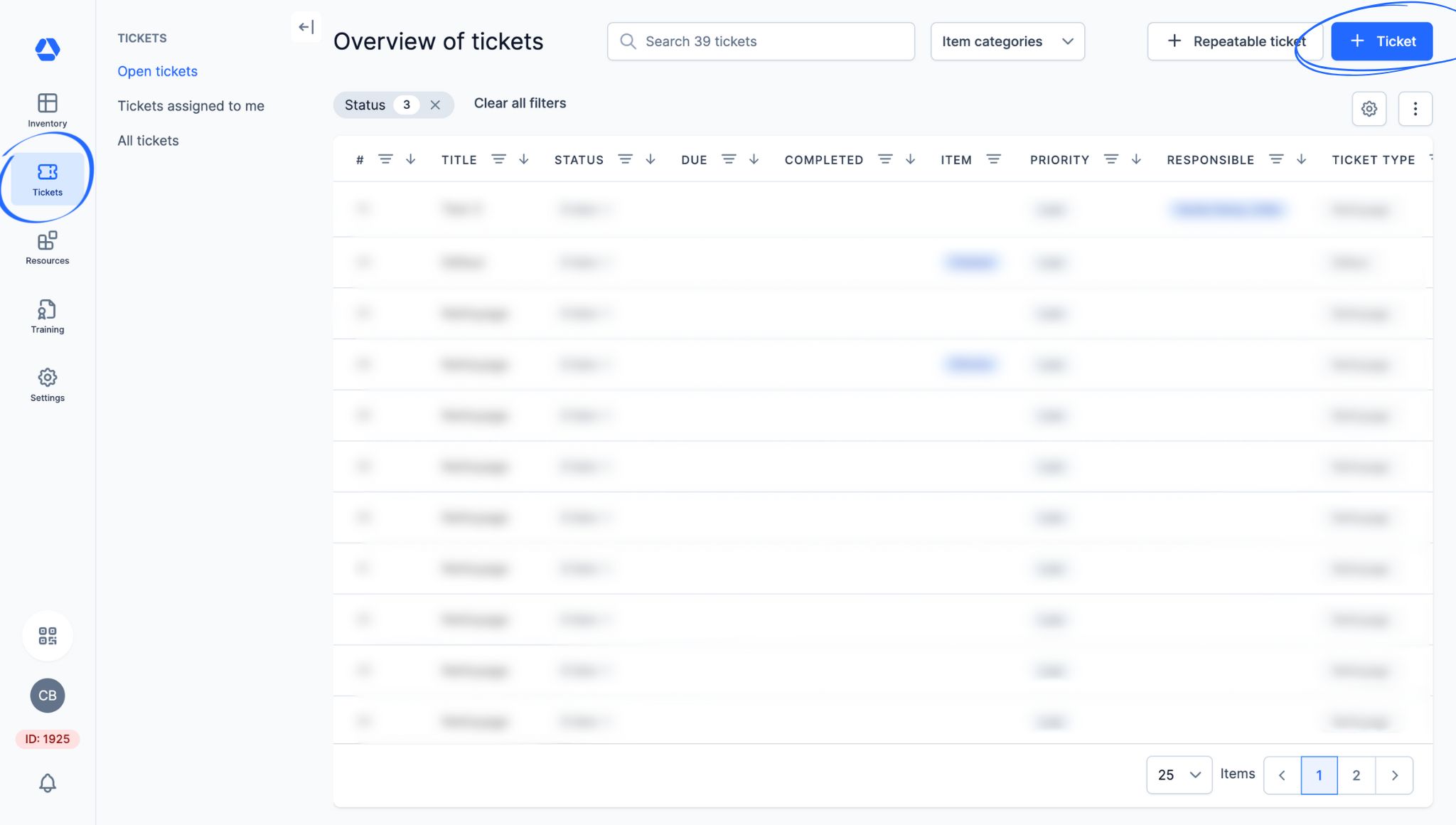
To create a ticket from the ticket overview page:
- Click "Tickets" > "Open Tickets", "Tickets assigned to me", or "All tickets"
- Click "+ Ticket"
- Choose a ticket template
- Optional: Search for the template name or click a ticket category
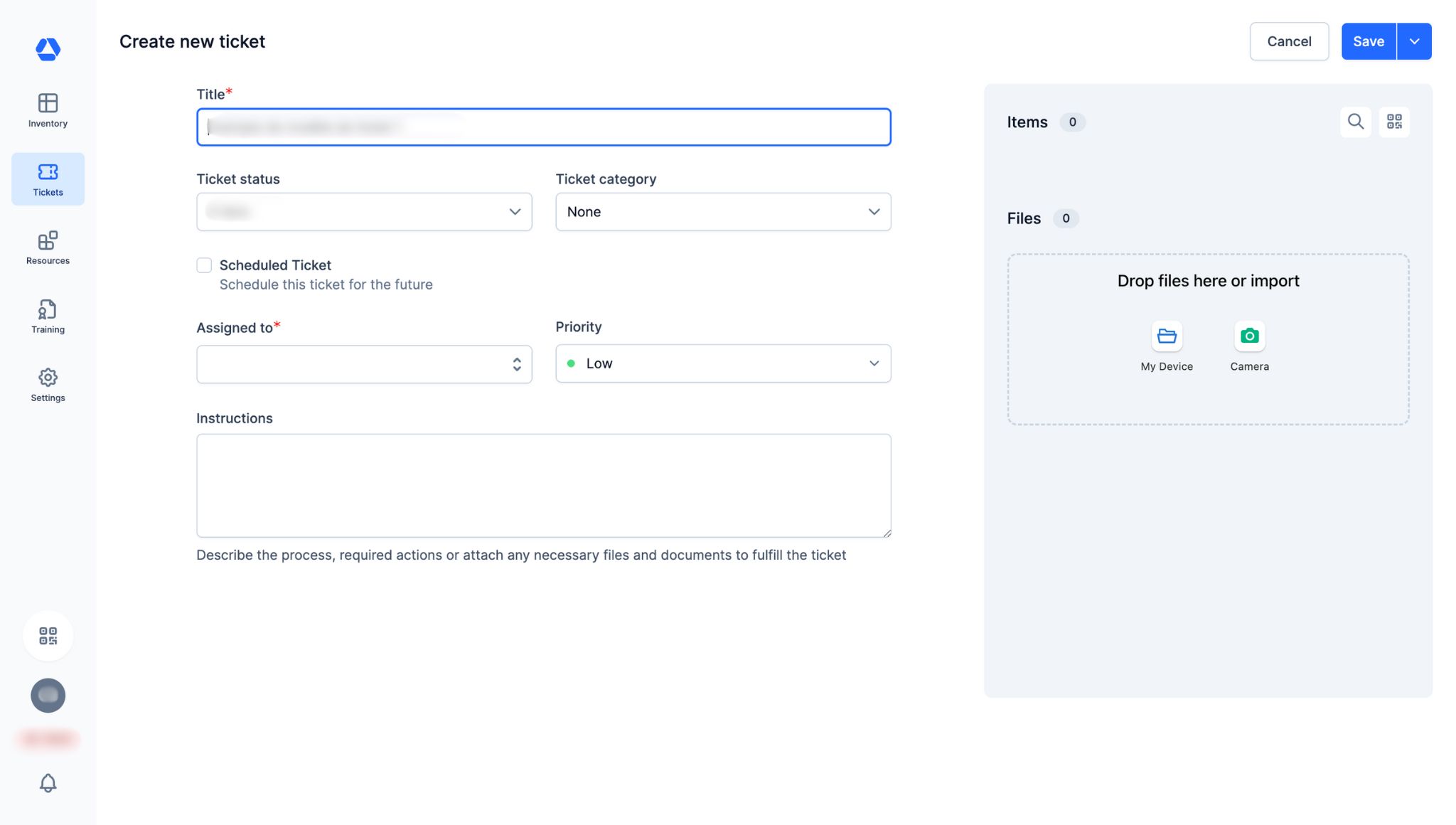
- Fill in the fields:
- "Title": Enter the ticket title
- "Ticket status": Select the ticket status
- "Ticket category": If not done already, choose a ticket category
- "Scheduled Ticket": Check this box if you want to add a due date
- "Due date": Select when the ticket should be completed
- "Notification": Choose how many days, weeks, months, or years in advance to send an email reminder
- "Assigned to": Select one or more responsible people; they will receive the reminder
- "Priority": Set the ticket priority: Low, Medium, or High (tickets can be filtered by priority in the overview)
- "Instructions": Optional; add instructions if necessary
- "Items": Add items to this ticket (search via the magnifying glass or scan the QR code; remove with the trash icon)
- "Files": Add or remove files for this ticket
📚 Tutorial: Creating a Repeatable Ticket
Examples of repeatable tickets:
- Calibration
- Safety equipment inspection
- Visual inspection
- Monthly preventive maintenance
Method 1: From an Item Page

To create a repeatable ticket from an item page:
- Go to the item page
- Scroll to "Open repeatable tickets"
- Click "+ Repeatable Ticket"
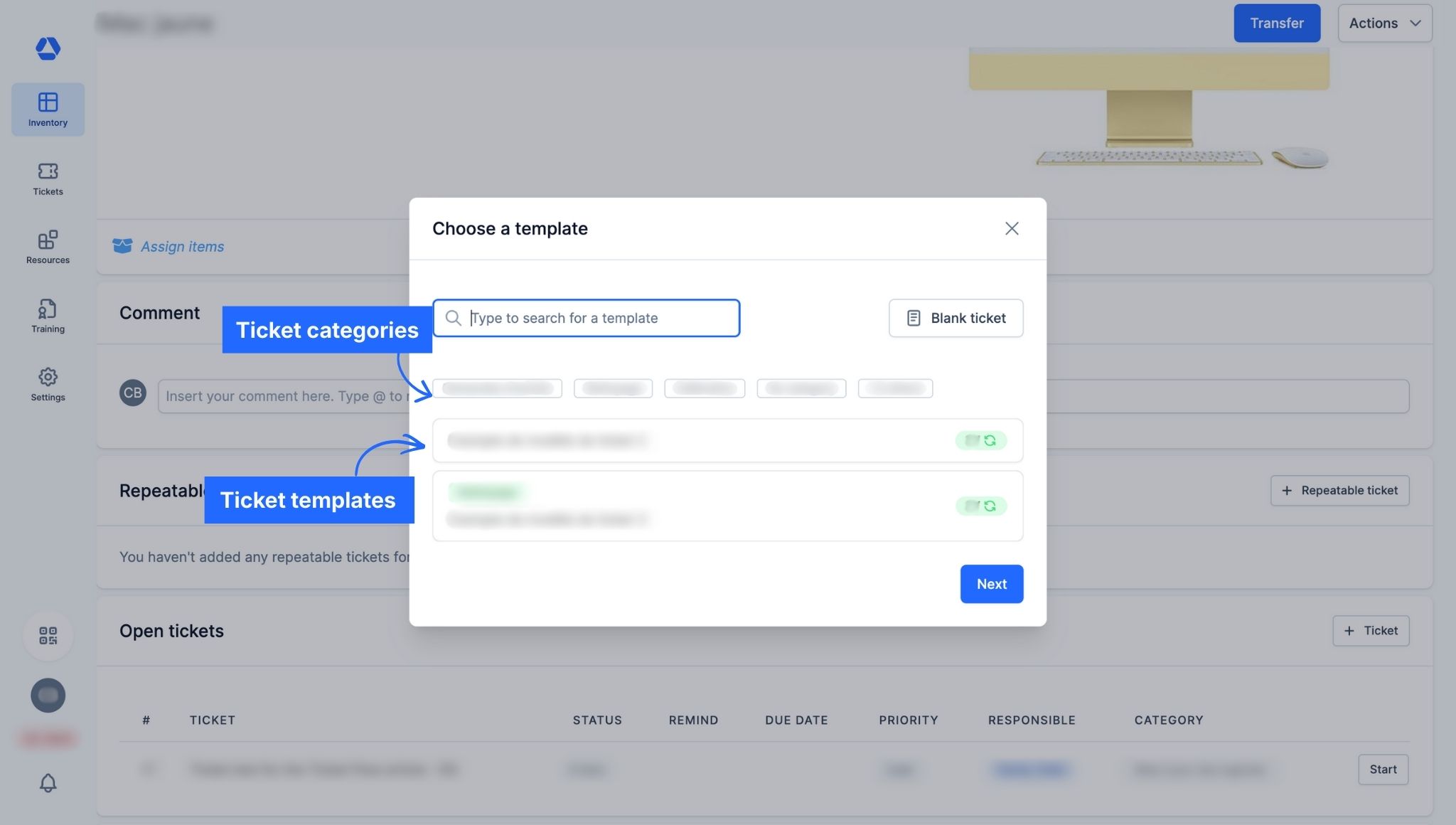
- Choose a repeatable ticket template
- Optional: Search by name or category
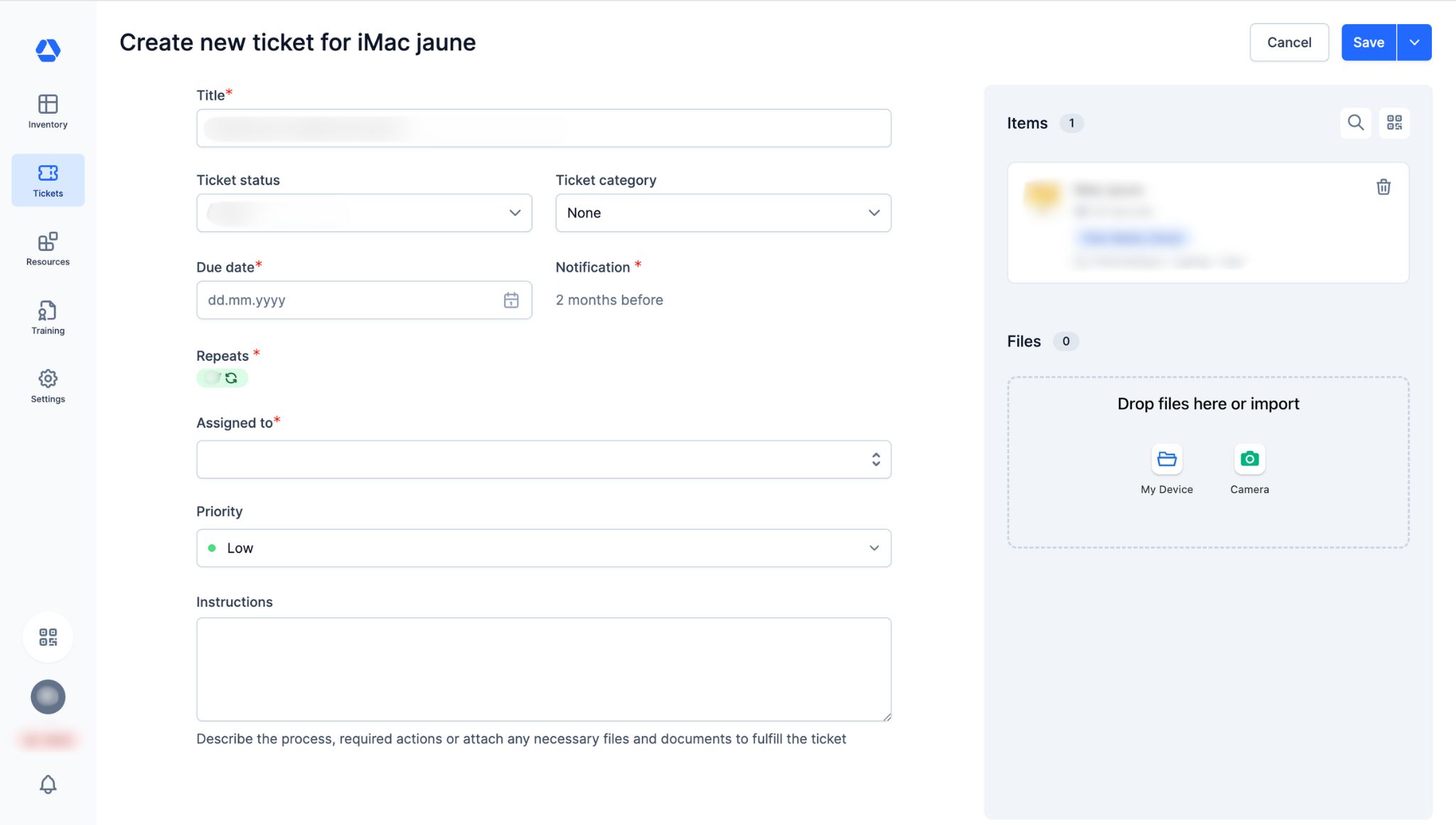
- Fill in the fields.
- "Title": Enter the ticket title
- "Ticket status": Select the ticket status
- "Ticket category": If not done already, choose a ticket category
- "Due date": Select when the ticket should be completed
- "Notification": This information is set in the ticket template
- "Repeats": This information is set in the ticket template
- "Assigned to": Select one or more responsible people; they will receive the reminder
- "Priority": Set the ticket priority: Low, Medium, or High (tickets can be filtered by priority in the overview)
- "Instructions": Optional; add instructions if necessary
- "Items": Add items to this ticket (search via the magnifying glass or scan the QR code; remove with the trash icon)
- "Files": Add or remove files for this ticket
Method 2: From the Ticket Overview Page
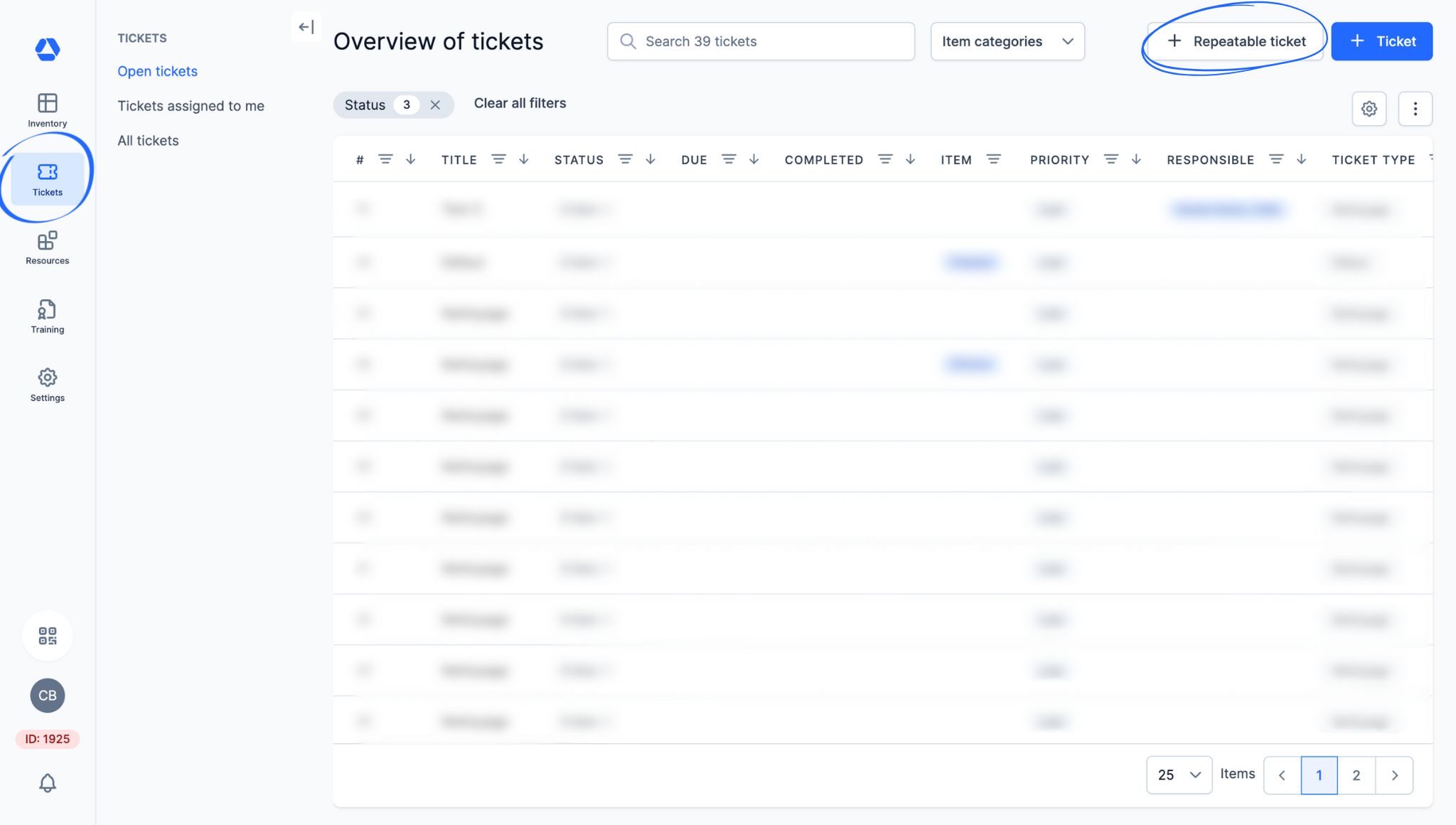
To create a repeatable ticket from the ticket overview page:
- Click "Tickets" > "Open Tickets", "Tickets assigned to me", or "All tickets"
- Click "+ Repeatable ticket"
- Choose a ticket template
- Optional: Search for the template name or click a ticket category
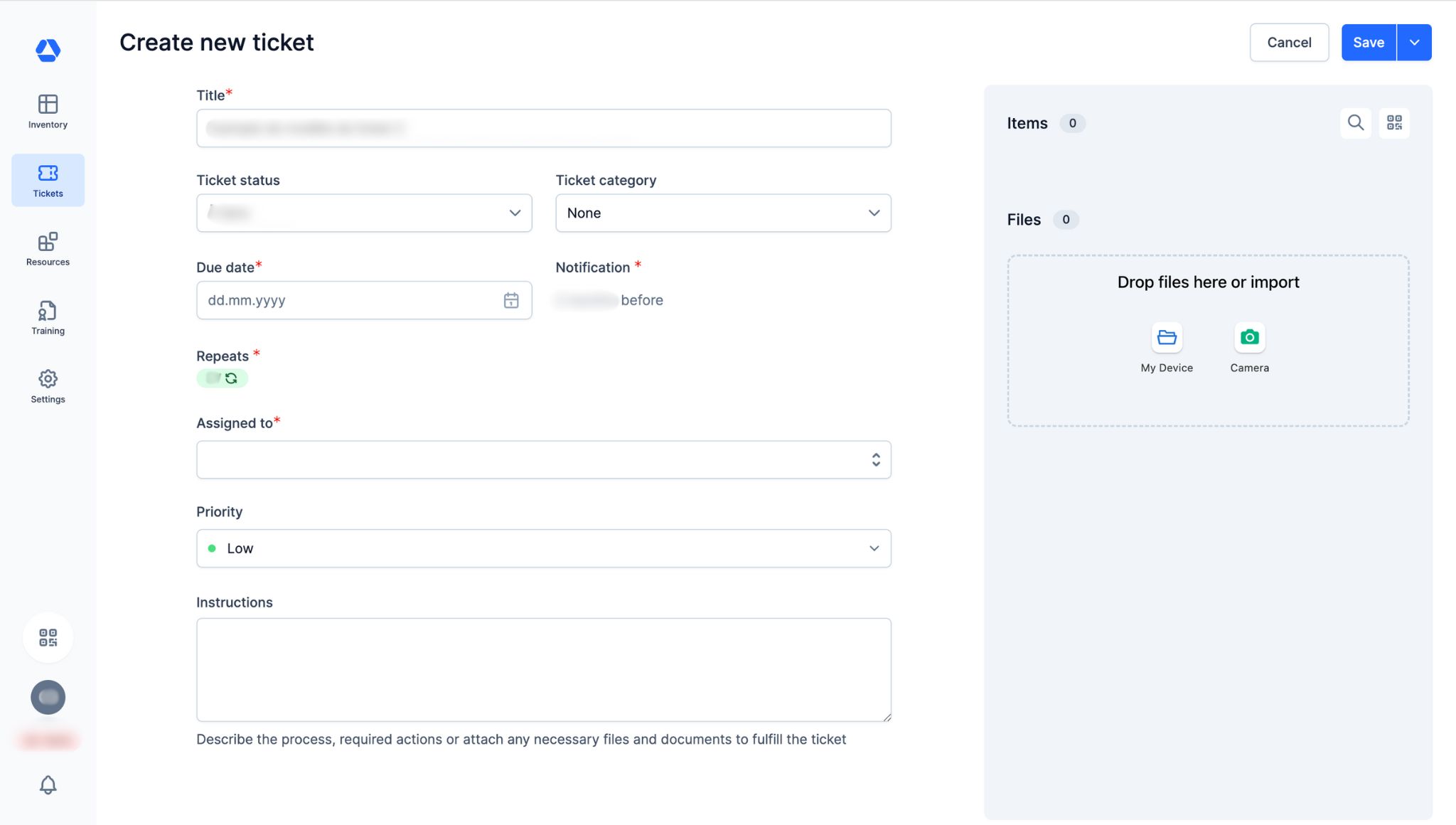
- Fill in the fields.
- "Title": Enter the ticket title
- "Ticket status": Select the ticket status
- "Ticket category": If not done already, choose a ticket category
- "Due date": Select when the ticket should be completed
- "Notification": This information is set in the ticket template
- "Repeats": This information is set in the ticket template
- "Assigned to": Select one or more responsible people; they will receive the reminder
- "Priority": Set the ticket priority: Low, Medium, or High (tickets can be filtered by priority in the overview)
- "Instructions": Optional; add instructions if necessary
- "Items": Add items to this ticket (search via the magnifying glass or scan the QR code; remove with the trash icon)
- "Files": Add or remove files for this ticket
📚 Tutorial: Creating a Blank Ticket (NEW)
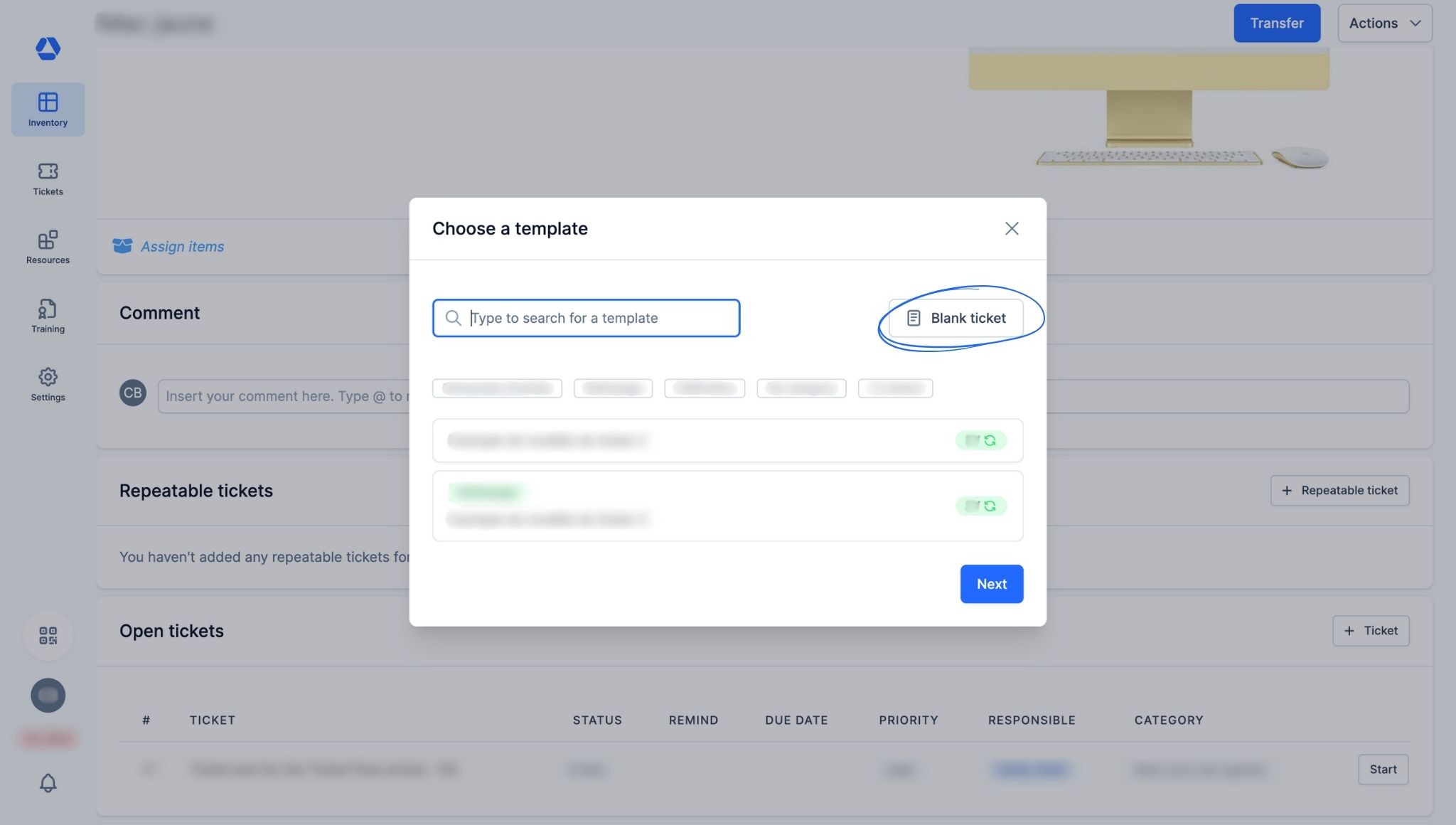
You can now create a blank ticket (repeatable or not), which is not linked to any template or category by default.
Create a blank ticket:
- From an item page:
- Click "+ Ticket" or "+ Repeatable ticket"
- Select "Blank ticket"
- From the ticket overview page:
- Click "+ Ticket" or "+ Repeatable ticket"
- Select "Blank ticket"
Then fill in the ticket according to your needs.
🎥 Ticketing System 2.0: Tour (VIDEO)
🎯 Key information
- "Ticket types" are now called "ticket templates"
- Ticket "fields" are now called "tasks"
- NEW: You can now create, manage, and edit your ticket categories and templates on a single page
- NEW: You can now create "blank tickets"
- The interface and user experience are more efficient and intuitive
What is the difference between a ticket and a repeatable ticket?
- Ticket: A ticket is created to manage one-time requests, such as a repair or an exceptional intervention. It does not repeat over time.
- Repeatable ticket: A repeatable ticket is created to ensure regular follow-up, ideal for tasks such as preventive maintenance. Once completed, an identical ticket is automatically created with the same specifications.
⭐ Table: Ticketing System
| Feature | Ticketing System Essential | Ticketing System Standard | Ticketing System Pro |
| Add documents to tickets | ❌ | ✅ | ✅ |
| Add due dates to tickets | ✅ | ✅ | ✅ |
| Add ticket watchers | ❌ | ✅ | ✅ |
| Assign tickets to several persons | ✅ | ✅ | ✅ |
| Automatically assign tickets | ❌ | ✅ | ✅ |
| Automatically mark items as defective | ❌ | ✅ | ✅ |
| Comment on tickets | ❌ | ✅ | ✅ |
| Create categories for ticket templates | ❌ | ✅ | ✅ |
| Create PDF exports | ❌ | ❌ | ✅ |
| Create repeatable tickets (Maintenance Manager) | ❌ | ✅ | ✅ |
| Create tasks | ❌ | ✅ | ✅ |
| Create tickets for single items | ✅ | ✅ | ✅ |
| Create ticket templates | ❌ | ✅ | ✅ |
| Create tickets with multiple items | ❌ | ✅ | ✅ |
| Create tickets without items | ❌ | ✅ | ✅ |
| Require signature to complete tickets | ❌ | ✅ | ✅ |
| Set notification reminders | ✅ | ✅ | ✅ |
| Set notifications reminders to item assignee or item responsible | ❌ | ✅ | ✅ |
| Set ticket priority | ✅ | ✅ | ✅ |
| Set ticket status | ❌ | Default status | Costumizable status |
| Ticket history (audit log) | ❌ | ❌ | ✅ |
| Ticket overview page | ✅ | ✅ | ✅ |
| Ticket templates: Restrict ticket templates to specific item categories | ❌ | ❌ | ✅ |
| Ticket templates: Restrict ticket templates to specific org.units | ❌ | ❌ | ✅ |
| Ticket templates: Set responsible person(s) | ❌ | ✅ | ✅ |
| Ticket templates: Set responsible person(s) per org. unit | ❌ | ❌ | ✅ |
| Track costs | ❌ | ✅ | ✅ |
| View tickets on the item page | ✅ | ✅ | ✅ |
Focus: The Ticketing System Table, Section By Section
- Creation -
| Feature | Ticketing System Essential | Ticketing System Standard | Ticketing System Pro |
| Create tickets for single items | ✅ | ✅ | ✅ |
| Create tickets with multiple items | ❌ | ✅ | ✅ |
| Create tickets without items | ❌ | ✅ | ✅ |
| Create repeatable tickets (Maintenance Manager) | ❌ | ✅ | ✅ |
- Documentation -
| Feature | Ticketing System Essential | Ticketing System Standard | Ticketing System Pro |
| Add documents to tickets | ❌ | ✅ | ✅ |
| Comment on tickets | ❌ | ✅ | ✅ |
| Create tasks | ❌ | ✅ | ✅ |
| Require signature to complete tickets | ❌ | ✅ | ✅ |
- Features -
| Feature | Ticketing System Essential | Ticketing System Standard | Ticketing System Pro |
| Add due dates to tickets | ✅ | ✅ | ✅ |
| Add ticket watchers | ❌ | ✅ | ✅ |
| Assign tickets to several persons | ✅ | ✅ | ✅ |
| Automatically assign tickets | ❌ | ✅ | ✅ |
| Automatically mark items as defective | ❌ | ✅ | ✅ |
| Create ticket templates | ❌ | ✅ | ✅ |
| Create categories for ticket templates | ❌ | ✅ | ✅ |
| Set notification reminders | ✅ | ✅ | ✅ |
| Set notifications reminders to item assignee or item responsible | ❌ | ✅ | ✅ |
| Set ticket priority | ✅ | ✅ | ✅ |
| Set ticket status | ❌ | Default status | Costumizable status |
| Ticket overview page | ✅ | ✅ | ✅ |
| Ticket templates: Set responsible person(s) | ❌ | ✅ | ✅ |
| Track costs | ❌ | ✅ | ✅ |
| View tickets on the item page | ✅ | ✅ | ✅ |
- Pro Features -
| Feature | Ticketing System Essential | Ticketing System Standard | Ticketing System Pro |
| Create PDF exports | ❌ | ❌ | ✅ |
| Ticket history (audit log) | ❌ | ❌ | ✅ |
| Ticket templates: Restrict ticket templates to specific item categories | ❌ | ❌ | ✅ |
| Ticket templates: Restrict ticket templates to specific org.units | ❌ | ❌ | ✅ |
| Ticket templates: Set responsible person(s) per org. unit | ❌ | ❌ | ✅ |