
2026.11 | New Ticket Execution Flow
The ticket page now adapts to each stage of a ticket's lifecycle. You'll see a dedicated view while working on a ticket, a brief confirmation dialog when completing it, and a separate view once it's completed. Creating a ticket stays the same. The changes start once a ticket has been created.
🆕 What Has Changed?
- A cleaner ticket view. The main content area contains everything you need to work on the ticket. Background information sits in the panel on the right, where you can still change it.
- An easier-to-find Save button. The top of the page now has “Close”, “Save” and “Mark as done”. Until now, “Save” was tucked away in the menu next to “Mark as done”.
- A dedicated completion step. Clicking "Mark as done" opens a confirmation dialog asking who completed the work, when it was completed, and for a signature if required.
- A dedicated view for completed tickets. A completed ticket displays who completed the work and when, rather than the assigned user and due date. You can also lock the ticket so nobody can change it anymore.
- Fewer accidental completions and locks. Every ticket must go through the complete ticket dialog before it can be completed, and the "Lock" button only appears on completed tickets.
- Tidier lists. Item lists and the costs section have a cleaner, more compact design.
- The main content area contains everything you need to work on the ticket. The panel on the right contains the items, the background information (“Details“) and how often the ticket repeats (“Recurrence“).
- Working on a ticket -
Part of the page | Before | Now |
| Header buttons | “Cancel” and “Mark as done”, with “Save” in the menu next to “Mark as done” | “Close”, “Save” and “Mark as done” |
| Locking | A “Lock ticket now” checkbox, shown even before the ticket is completed | No lock option while the ticket is open. The checkbox is replaced by a “Lock” button that appears only once the ticket is completed |
| Status | “Ticket status” dropdown list | Clickable status buttons for up to six statuses, a dropdown when there are more |
| Assigned to, Due date | “Assigned to” in the main form, “Due date” in the right panel | Both at the top of the main part of the page |
| Instructions | Cannot be changed after creation | Instructions written when the ticket was created can be changed with the pencil icon. Instructions from a template remain unchanged |
| Tasks | Unchanged | Unchanged, and hidden when the ticket has no tasks |
| Note | Always-open box | Opened with the “Add note” button. It is already open if a note exists |
| Costs | Expandable “Activities” and “Materials” sections, with “Add activity” and “Add material” buttons | A single "Add costs" button with four options: “Add activity” (work time), “Add materials”, “Search inventory” or “Scan barcode”. Only the design changes, and the options work as before |
| Files | Upload area always visible, in the right panel | In the main part of the page. Existing files are listed, and the upload area appears after you click “Add files” |
| Comments | No heading | Have a heading |
| Items (right) | Large item cards | Compact cards. A chevron opens and closes more details about each item |
| Details (right) | Due date, Notification, Priority and Created by, with Org. unit in the main form | Shown for reference and changeable with the pencil icon, in this order: Notification, Priority, Org. unit, Created by |
| Recurrence (right) | Only on recurring tickets, as “Instances”. Only recurring tickets show links to their previous and next occurrences | Shown on every ticket. “Repeat” shows how often the ticket repeats (“Never” for one-off tickets), plus the previous and next occurrences. The repeat frequency can be changed until the ticket is completed |
| Completion date | Always visible | Hidden until the ticket is completed. It is first asked for in the completion dialog |
- Completing a ticket -
Clicking “Mark as done” now opens the “Complete ticket” dialog instead of the simple "Are you sure?" Prompt.
- Where applicable, a short note explains what will happen next: a follow-up ticket will be created, the ticket will be locked, or the status of the linked items will change. As before, completing a recurring ticket automatically creates the next one. A follow-up ticket is created only once, even if the original ticket is reopened and completed.
- Completed by (new, required) identifies the person who performed the work. Your name is entered by default. You can select another Timly user or enter any name, such as that of an external technician.
- Completed (required) is the date the work was completed. Today's date is always entered by default. You can choose an earlier date, but not a future one.
- A signature is only requested if the ticket requires one.
Click “Complete ticket”. You remain on the same ticket, which is now shown in its completed view. To go back without completing the ticket, click “Cancel”.
- Viewing a completed ticket -
Part of the page | Before | Now |
| Layout | Same page as an open ticket | A dedicated view for completed tickets |
| Completed by | Not recorded | Shown at the top of the page, in place of “Assigned to“ |
| Completed (date) | Shown in the main form, next to “Assigned to” | Shown next to “Completed by“, in place of “Due date“ |
| Assigned to, Due date | “Assigned to“ in the main form, “Due date“ in the right panel | Both at the top of the “Details“ panel |
| Tasks | Shown as on an open ticket | Read-only, changeable with the pencil icon |
| Details | Partly in the right panel, partly in the main form | Changeable with the pencil icon until the ticket is locked |
| Recurrence | Shown with the other details | Can no longer be changed once the ticket is completed |
| Header buttons | “Cancel” and “Save” | “Close”, “Save” and “Lock”. “Save” only appears once you have made a change. “Lock” is only shown if manual locking is enabled; if time-based locking is enabled, you will see a countdown instead. |
| Manual locking | A “Lock ticket now” checkbox, with the ticket locking when you save | A “Lock” button, shown only if your company locks tickets by hand. It asks “Lock ticket?” first, because a locked ticket can no longer be changed or deleted. If your organization has turned on automatic locking, completed tickets are locked automatically after a set number of days (7 by default), as before. Permissions are unchanged: anyone who can complete a ticket can still change all of its details. |
🔀 Why Did We Change It?
Until now, a ticket looked the same whether it was still open or already completed, and the page gave no clear guidance on what to do next.
- A dedicated view for every stage. The fields needed to complete the work were mixed in with information entered when the ticket was created. The new working view keeps the focus on the work that is left to do.
- Save was hard to find. The main button was “Mark as done”, and you had to open the menu next to it to save without completing the ticket. “Save” is now always visible.
- Completion was incomplete. Timly only recorded the date a ticket was completed, not who did the work. The complete ticket dialog now records both, plus a signature where one is required.
- Avoidable mistakes. The completion confirmation was not always shown, and an open ticket could be locked. Neither is possible anymore.
🔎 Focus: Before & After Screenshots
Working on an open ticket
Before
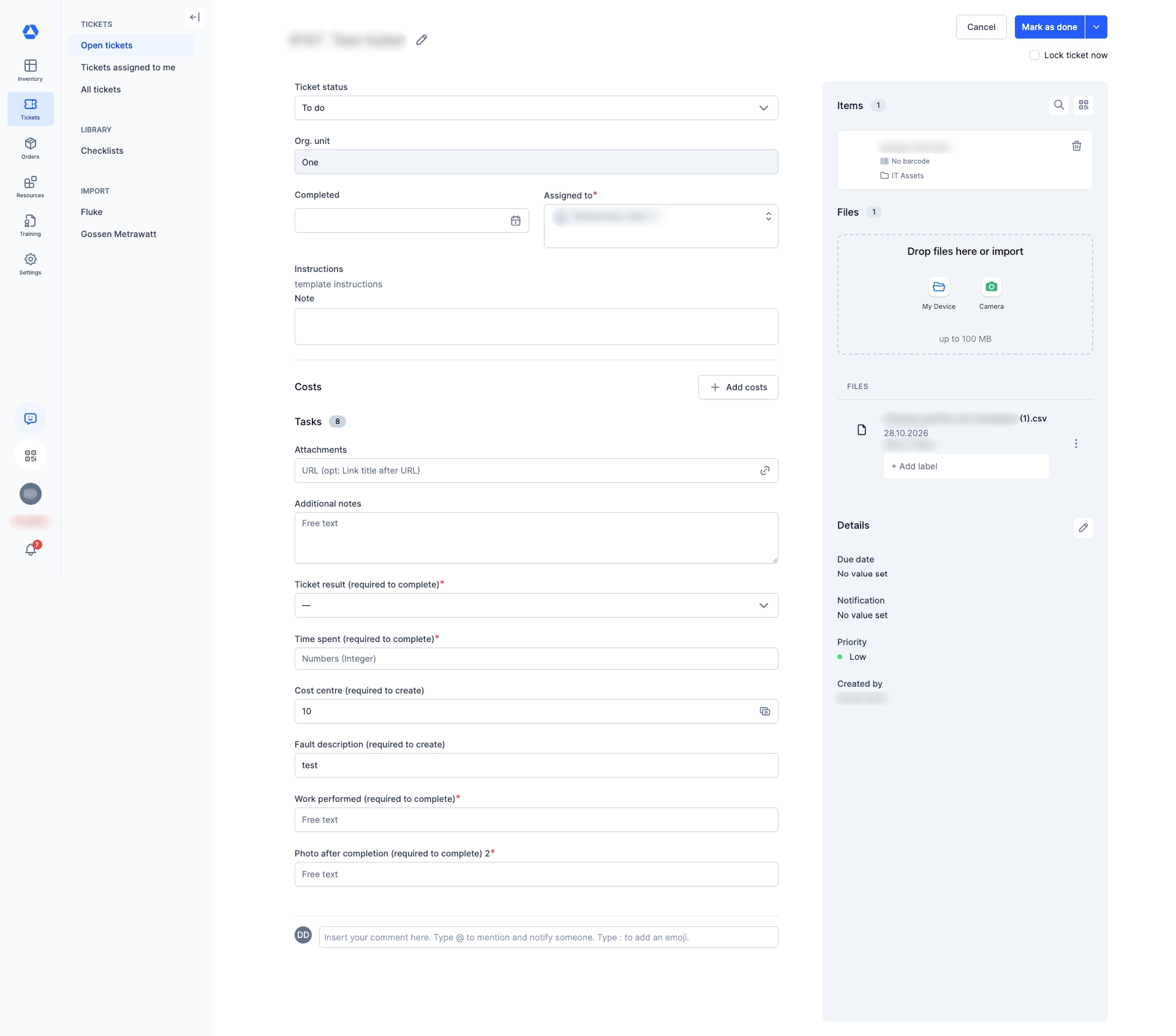
The open ticket was one long form. “Mark as done” was the main button, “Save” sat in the menu next to it, and the “Lock ticket now” checkbox was shown even though the ticket was not done.
After
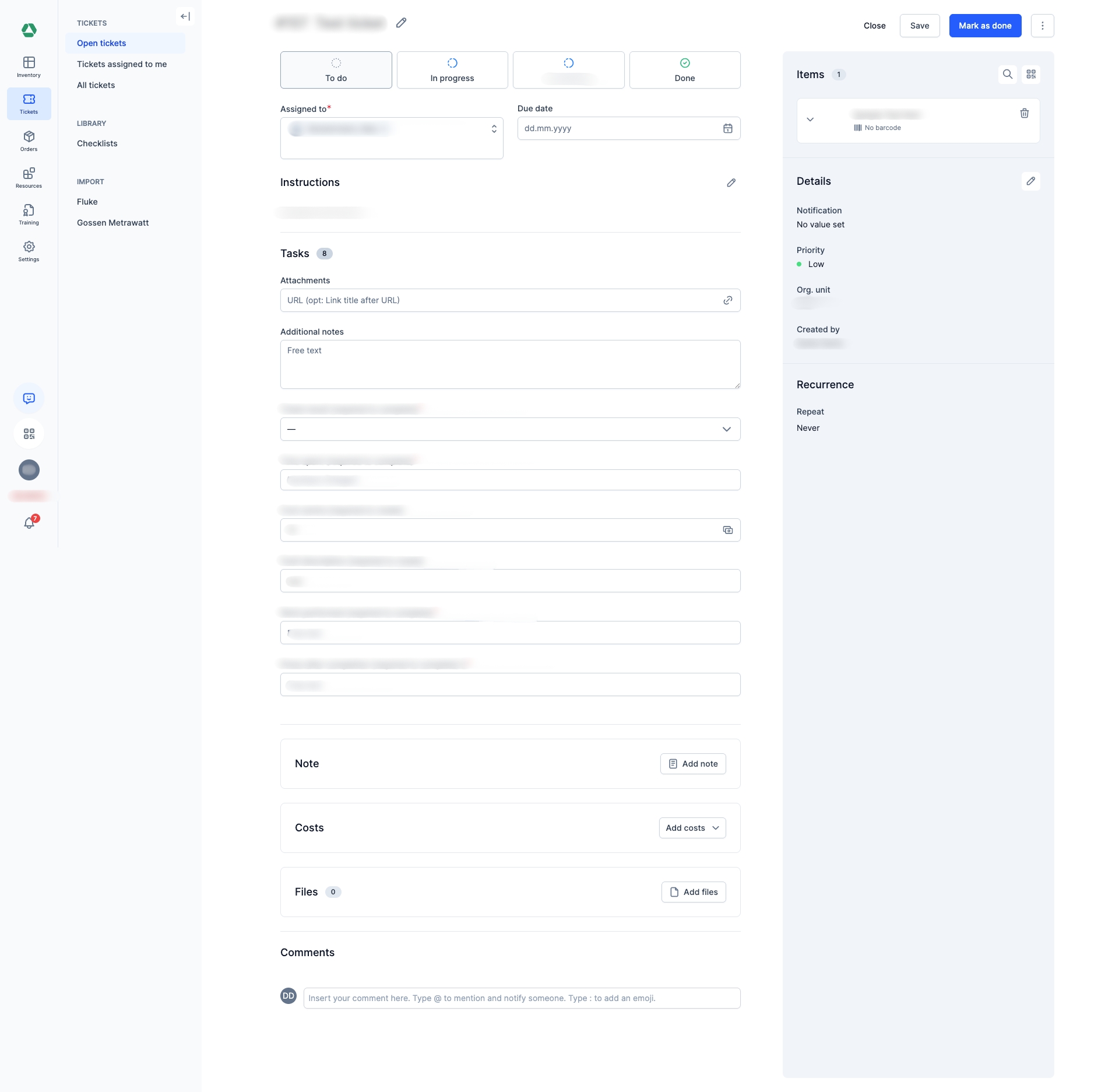
The header shows “Close”, “Save” and “Mark as done”, and the status is chosen with buttons. "Note", "Costs" and "Files" each have their own button, and "Comments" has a heading. "Items", "Details" and "Recurrence" sit in the panel on the right.
Completing a ticket
After
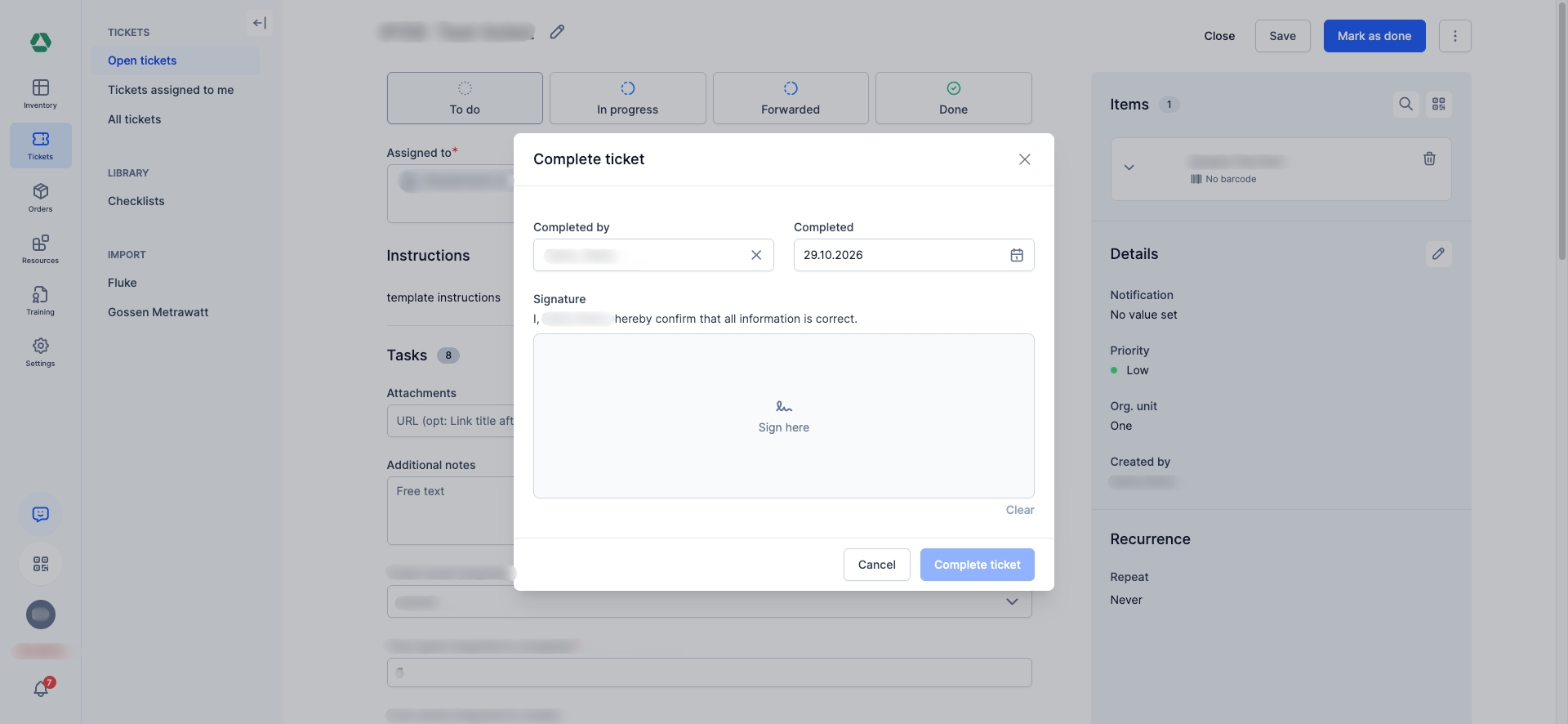
The “Complete ticket” dialog asks who completed the work, the completion date and, when the ticket requires it, a signature.
Viewing a completed ticket
Before
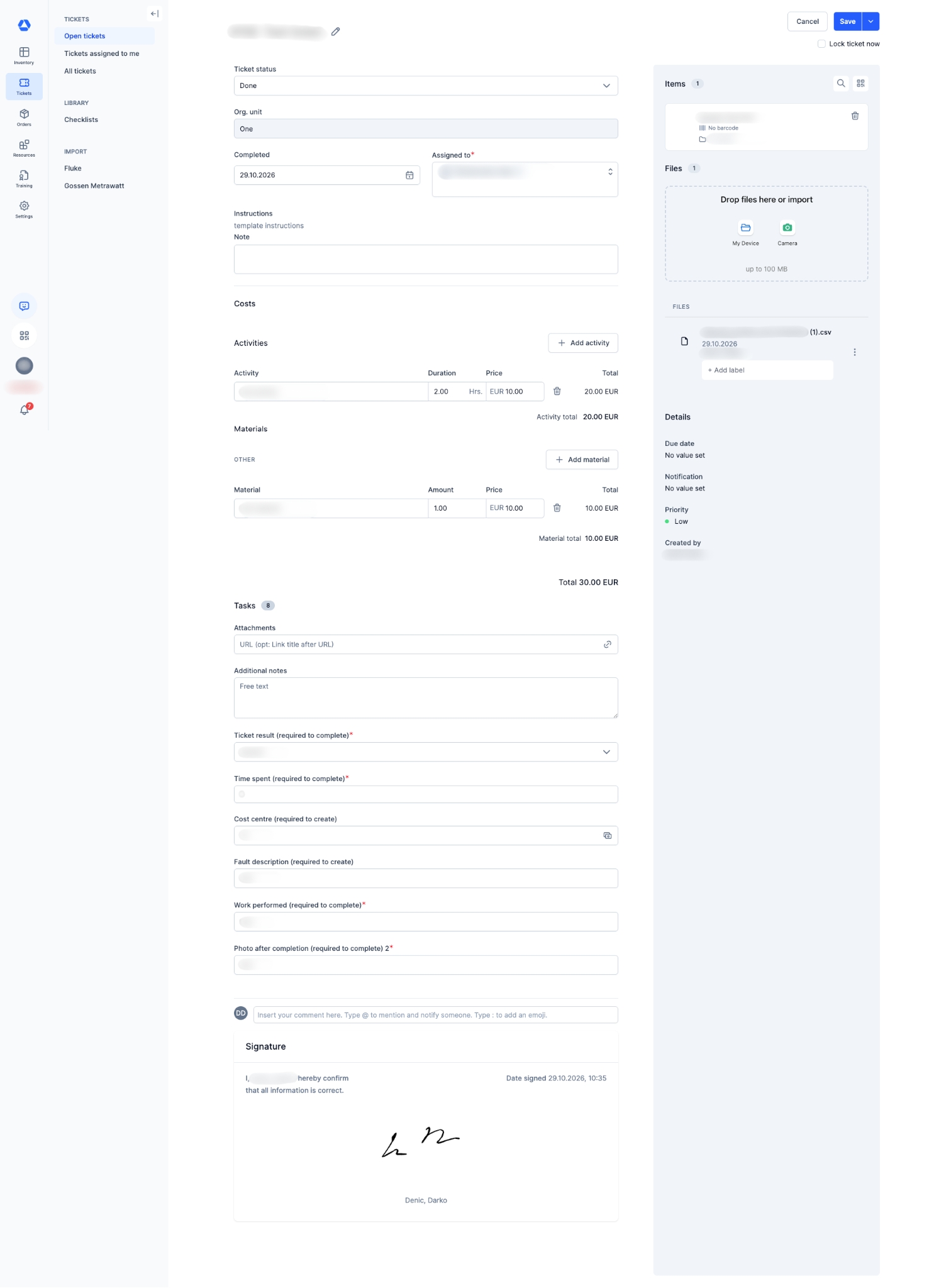
A completed ticket looked the same as an open one, with a “Ticket status” dropdown and the “Lock ticket now” checkbox.
After
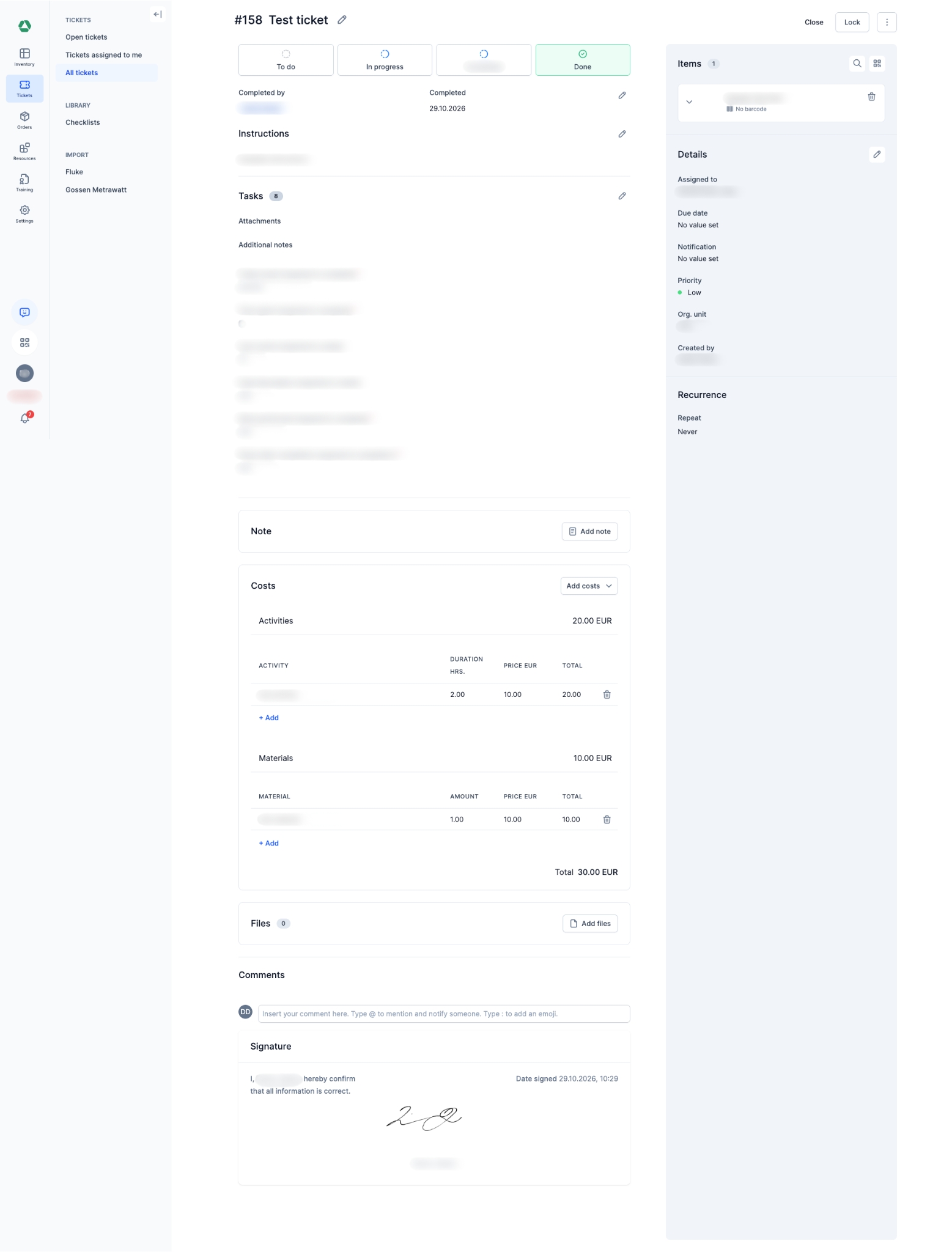
The field “Completed by“ and the completion date are shown at the top, and “Assigned to” and “Due date” move to the top of the “Details” panel. The header shows “Close” and “Lock”.
📚 More Resources
- Help Center: Glossary
📩 Do you have more questions? Schedule a free and non-binding demo with one of our experts, or ask us at [email protected].