
How Do I Import Test Results from Gossen Metrawatt Devices into Timly?
💡 What You Need to Know
Electrical safety testing is a routine task for many Timly users. With the Gossen Metrawatt Importer, you can import electrical measurements taken with your Gossen Metrawatt devices directly into Timly. Timly uses the barcode in the XML file to identify the tested item and automatically updates an existing ticket or creates a new one.
📘 This guide explains how to import Gossen Metrawatt test results into Timly.
- How it works -
- Perform an electrical safety test on an item using a Gossen Metrawatt SECUTEST device.
- Export the test results as an XML file.
- Upload the XML file to the Gossen Metrawatt Importer in Timly.
- Timly handles the rest automatically: It uses the barcode stored in the XML file to identify the tested item. It then looks for a matching open ticket.
- Two possible outcomes -
For every item identified in the XML file, Timly searches for an open ticket that meets both of the following conditions:
- The ticket is linked to the tested item.
- The ticket is based on the ticket template selected in Step 1.
Outcome 1: A matching ticket is found
- Timly adds the imported measurements to the ticket's "Notes" section,
- completes the ticket,
- and creates a follow-up ticket based on the applicable recurrence interval.
Outcome 2: No matching ticket is found
- Timly creates a new ticket from the selected template,
- adds the imported measurements to the "Notes" section,
- completes the ticket,
- and creates a follow-up ticket based on the applicable recurrence interval.
Important notes:
- XML files generated by Gossen Metrawatt are standardized. You do not need to format or edit them before uploading them to Timly; they already contain all required information.
- To identify each tested item, the system loops through the <Devices> block of the XML file. Each entry contains an <Identification> tag, whose value is matched against the barcode attribute in your Timly inventory.
- A single XML file can contain measurements for multiple items. Timly processes all of them and, in Step 2, shows you exactly what will be created or updated before you confirm the import.
- Tickets to which measurements are added are marked as closed after the import, but they are not locked.
- The ticket completion date is taken from the <Measurements><b:TestTime> tag in the XML file. This ensures that the correct measurement date is displayed in Timly. If no date is provided, the current date is used by default.
- The due date of the follow-up ticket is taken from the <NextTestingDate> tag in the XML file. If the recurrence interval configured in Timly differs from the data sent by the measurement system, the XML value takes precedence. If no date is provided, the due date is calculated from the recurrence interval defined in the selected ticket template.
- Example -
- A technician performs electrical safety tests on two items on 12 May 2027:
· Item A
· Item B
- They then upload the XML file containing the measurement results to Timly.
- During the import, they select the "Electrical Safety Check" ticket template, which has a recurrence interval of three months.
- The preview then shows the following:
· Item A : An open ticket already exists
- An "Electrical Safety Check" ticket is already open for Item A, with a due date of May 12, 2027.
- Timly automatically updates this ticket:
- The imported measurement results are added to the "Notes" section.
- The completion date is set to May 12, 2027.
- The ticket is completed.
- A follow-up ticket is automatically created with a due date of August 12, 2027.
· Item B : No open ticket exists
- There is currently no open ticket based on the "Electrical Safety Check" template for Item B.
- Timly automatically creates a ticket based on this template, then:
- Adds the imported measurement results to the "Notes" section.
- Sets the completion date to May 12, 2027.
- Completes the ticket, since the inspection has already been carried out.
- Creates a follow-up ticket with a due date of August 12, 2027.
🎥 Interactive Demo
⚙️ The Steps
- Configure the ticket template for test results -
In Step 1 of the import process, you need to select a repeatable ticket template. This template tells Timly how to process the imported measurements for each item.
- If an open ticket based on this template is linked to the tested item, Timly finds it and updates it with the imported measurement results.
- If no open ticket exists for the item, Timly automatically creates a new ticket based on the selected template.
👉🏼 It is therefore mandatory to configure a ticket template specifically for these test results.
Note:
Want to learn how to create a ticket template?
See our guide: Create a ticket template.
- Access the Gossen Metrawatt Importer -
There are two ways to access the Gossen Metrawatt Importer:
Option 1
In the main menu, click "Ticket” and select "Gossen Metrawatt”
Option 2
Go directly to: https://app.timly.com/gossen_metrawatt
- Generate the XML file -
To generate an XML file containing measurements taken with a Gossen Metrawatt SECUTEST ST device:
- First, transfer the measurements from the SECUTEST ST device to the IzytronIQ software.
For detailed instructions, see Gossen Metrawatt’s documentation:
🇬🇧 : How does the data transfer from the SECUTEST S4 to the IZYTRONIQ work?
🇩🇪 : Wie funktioniert die Datenübertragung vom SECUTEST S4 zur IZYTRONIQ?
- Then export the measurements from IzytronIQ as an XML file.
For detailed instructions, see Gossen Metrawatt’s documentation:
🇬🇧 : Data Export Function
🇩🇪 : Funktion Datenexport
💡 You can also find video tutorials on the Gossen Metrawatt Training YouTube channel.
- Step 1: Upload the file -
- Open the Gossen Metrawatt Importer.
- Under "Select ticket template", click "Select" and choose the ticket template associated with the test results.
- Click "Upload a file" and select the XML file generated by IzytronIQ.
- Click "Next".
- Step 2: Preview -
This page shows three types of information:
- Any errors detected in the "Detailed errors" section.
- The tickets that will be created after the import, including the total number.
- The tickets that will be updated after the import, including the total number.
For every ticket that will be created or updated, the preview displays:
- Ticket name.
By default, automatically created tickets use the name of their source ticket template. You can rename the ticket if needed. - Ticket template name.
- Person assigned to the ticket.
- Item linked to the ticket.
- Due date.
💡 Important:
- If there is a discrepancy between testing intervals—meaning the <TestingInterval> value in the XML file differs from the recurrence interval configured in the Timly ticket—the Gossen Metrawatt value takes precedence.
- At this stage, the import has not yet been confirmed. No tickets have been created or updated. Timly reads the XML file, flags any potential errors, and shows how many tickets will be created and/or updated in Step 3.
- To confirm the import, click "Next".
- Step 3: Results -
- For every item identified in the XML file, Timly adds the measurement data to the "Notes" section of the associated ticket.
- The ticket is then completed, and a follow-up ticket is created for the next measurement cycle.
This page displays:
- Total number of tests processed.
- Total number of tickets created or updated.
- Number of errors.
- Details of any errors.
- A list of updated and completed tickets.
- A list of follow-up tickets created.
For each follow-up ticket, the page displays:
- Ticket name.
- Due date.
- Assigned person.
- Linked item.
- Ticket template name.
💡 Note:
- The "Created follow-up tickets" section lists the follow-up tickets generated at the end of the import. These tickets remain open and will be updated during the next import session.
- Click "Close" to finish the import session.
- Focus: Example of imported measurements -
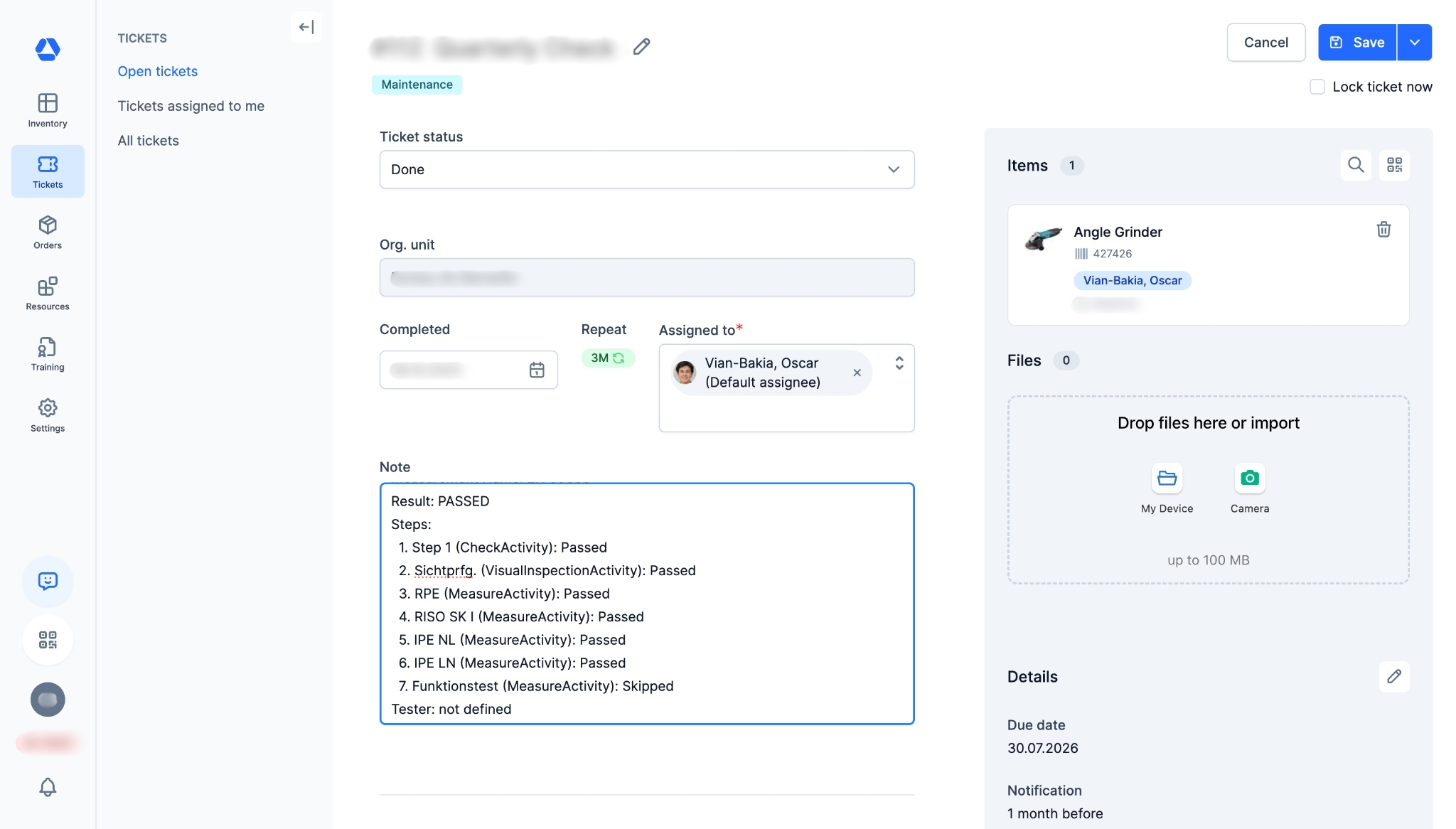
When importing data, the measurements captured by Gossen Metrawatt devices are automatically added to the "Notes" section of each relevant ticket.
🔎 FAQ
XML Import and Capacity
- Is there a maximum file size or item count for a single XML import?
Each XML file is limited to 10 MB. There is no limit on the number of items per file.
- After correcting an error, can I re-import the XML file without duplicating ticket updates that were processed successfully during the previous import?
No. Re-importing the file would automatically create new tickets rather than updating the existing ones. To correct data from a previous import, update the "Notes" section of the relevant ticket instead.
Item and Ticket Matching
- If an item has multiple open tickets created from the selected template, how does Timly determine which ticket to update?
This is unlikely to happen, as Timly only creates a follow-up ticket once the previous one has been closed. If several open tickets do exist for the same template, Timly updates the one with the earliest due date.
- Does an XML import overwrite existing ticket notes, append new information to them, or handle them differently?
An XML import overwrites existing ticket notes. Any content previously entered in the "Notes" field is replaced by the imported value.
Templates and Access Permissions
- Can one import be used for multiple test types, or does each test type require its own template?
A single import can cover several test types, as long as they can all use the same ticket template. Since the template defines the ticket name, recurrence, and assigned owner, all the tickets created will share those settings — so the test type will not be identifiable from the ticket name alone.
- Who can access and use the Gossen Metrawatt Importer?
The importer is available to users who have permission to create and edit tickets.
Errors, Validation, and Audit Trail
- How do I know what caused an error?
Errors are rare. When one does occur, the “Detailed errors” section displays a message describing its cause, so you can identify the issue directly.
- After confirming the import in Step 2 by clicking “Next”, is there an option to undo or roll back the import?
No, an import cannot be undone once you have clicked "Next". This is why a warning is displayed before confirmation. If you need to correct data that has already been imported, update the ticket directly rather than running a new import.
📖 Timly Glossary
Item: A resource—physical or digital—that is managed and tracked in Timly. This can include IT equipment, tools, vehicles, office supplies, medical devices, software, and more.
IzytronIQ: Gossen Metrawatt’s software for managing electrical safety inspections and measurement data.
Repeatable ticket: A ticket template used to manage repeatable tasks, such as periodic inspections, software updates, or security system checks. Once a repeatable ticket is completed, Timly automatically creates a follow-up ticket.
SECUTEST ST: Gossen Metrawatt devices used for electrical safety testing.
📖 Find all the definitions in the Timly Glossary.
✅ Required Features & Functions
Gossen Metrawatt Importer; Timly Ticketing System: Standard or Pro.
🔗 More Resources
- Help Center: Create a ticket template
📩 Do you have more questions? Schedule a free and non-binding demo with one of our experts, or ask us at [email protected].